
You are a blogger. Your readers enjoy your content. They learn from it and come back for more.
But what about a blind user? They open your page and start reading your post. Suddenly, their screen reader reaches an image and reads: "IMG underscore 1299 dot jpg." That tells them nothing. That's where alt text comes in.
So, what is alt text, and why does it matter? In this post, you will learn its purpose and how to write it. You'll also see good and bad examples.
In this post:
- What Is Alt Text?
- Purpose of Alt Text
- Good vs Bad Alt Text Examples
- How to Write Good Alt Text
- Context Changes Alt Text
- When to Leave Alt Text Empty
- Common Alt Text Mistakes
- Alt Text in Other Languages
- My Alt Text Habits
- Test Your Alt Text in 5 Minutes
- Alt Text Checklist
- FAQs
- Conclusion
What Is Alt Text?
Alt text is short for alternative text. It puts an image's important visual information into words. You add this description through the image's HTML tag.
<img src="history-book.jpg" alt="History book about World War II with soldiers pictured on its cover">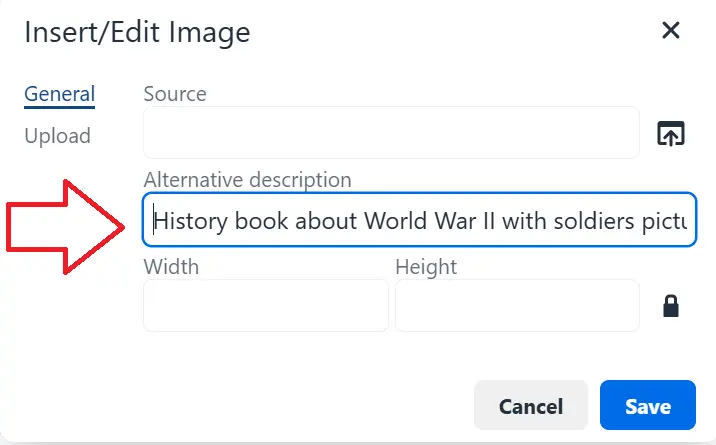
On a custom website, use the alt text field provided by its admin dashboard. In WordPress, enter it in the Alt Text field in the image upload or editing window.
When a screen reader reaches the image, it can announce its alternative text. It lets people hear what an image shows. If the image fails to load, browsers may display its alternative text.
Before exploring its uses, let's clarify a few terms people often mix up.
Alt Text vs Alt Tag vs Title
These expressions are often used interchangeably. However, they do not all mean the same thing.
- Alt attribute: The HTML attribute where you enter an image's alternative text.
- Alt text: The words that communicate an image's relevant information.
- Alt tag: A popular but technically inaccurate name for the alt attribute.
- Title attribute: Extra information that browsers may show as a tooltip when someone hovers over an image. It does not replace alt text.
Purpose of Alt Text
Alt text serves two important purposes. It helps people with visual impairments understand images and helps search engines understand what they show.
Accessibility for Everyone
People with visual impairments often rely on screen readers to use websites. These tools speak available text and accessible descriptions as users navigate pages. Alt text provides information that would otherwise exist only in an image.
Web accessibility guidelines recognize this need. WCAG requires text alternatives for non-text content, with certain exceptions.
Help for Search Engines
Search engines examine different details to understand an image. Its alt text provides another written clue about its subject. This can help Google understand images and match them with relevant searches.
However, alt text does not automatically improve rankings. Search visibility also depends on page quality and other SEO factors. Image format and file size matter too. Read my post on Best Image Format for Website.
Good vs Bad Alt Text Examples
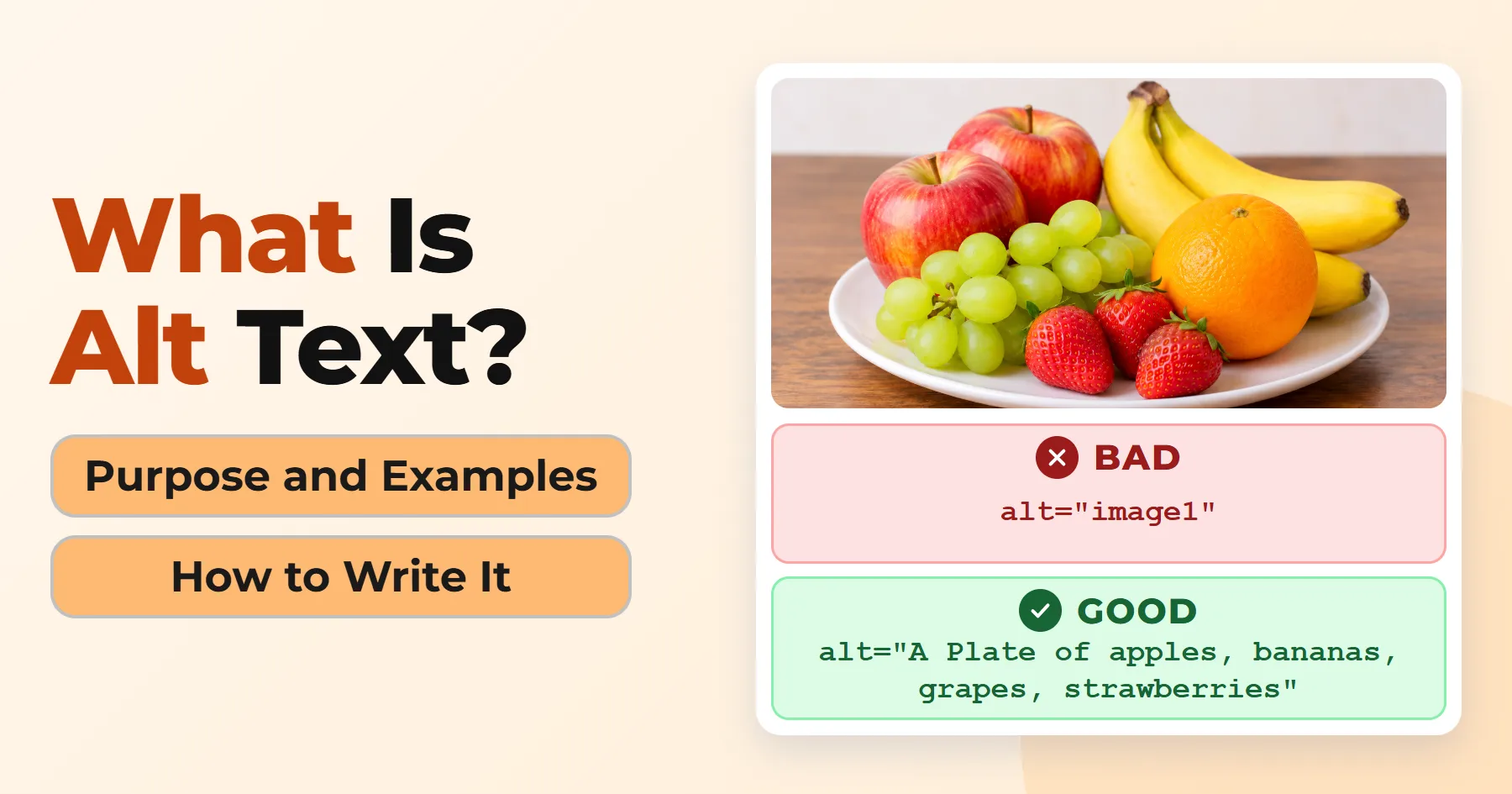
Examples teach faster than rules. Here is one image with weak and strong alt text.

Bad Alt Text:
A beautiful picture of fruits on a plate.
Good Alt Text:
A white plate holding two red apples, bananas, green grapes, an orange, and three strawberries on a wooden table.
Why is the second one better?
- Names the specific fruits instead of using a vague description.
- Starts with the main subject and keeps the description relevant.
- Avoids unnecessary opinions and subjective words.
- Gives enough detail without making the alt text too long.
Alt Text for Charts and Graphs
Charts can contain several figures, labels, and comparisons. Fitting everything into one short description can make it difficult to follow.
Identify the chart type and mention its main point in the alt text. Put detailed figures or explanations in nearby text or a data table.
How to Write Good Alt Text
Creating useful alt text is easier than you might think. Just remember a few basic rules.
1. Be Specific and Clear
Describe the actual details you can see in the image.
Weak: "A beach."
Strong: "A sandy beach with blue water and three umbrellas near the shore."
Imagine describing the photo to someone over the phone.
2. Skip "Image of"
Screen readers generally identify images as images. Starting with "image of" usually adds unnecessary words. Just describe the relevant visual information.
3. Keep It Short
There is no universal character limit. Keep descriptions concise and easy to follow. Complex images may need additional explanations nearby.
4. Avoid Keyword Stuffing
Cramming in keywords can make descriptions sound unnatural. It also creates a poor listening experience.
5. Explain the Purpose
Consider the image's purpose, not just its appearance. Your description should communicate the information readers need.
For a linked image, describe its destination or purpose. For an icon that triggers an action, name that action. For example, use "Download PDF" instead of "arrow icon."
Alt text: "Download PDF"
Context Changes Alt Text
The image alone does not always determine its best alt text. The surrounding page can change which details matter most.
Imagine a bright, sunny morning at the beach. The same photograph could appear on several pages:
- Travel guide: alt="Sunny morning view of a sandy beach beside clear blue water"
- Beach photography article: alt="Early morning sunlight falling across the shoreline"
- Family vacation guide: alt="Sandy beach with clear water and open space for families"
Each description highlights a different aspect of the scene. Choose details that support the page's topic and inform readers.
Try It Yourself
Consider another situation. Imagine a laptop, wireless mouse, and notebook arranged on a wooden desk.
This time, the page covers setting up a home office. What would readers need to know about the picture?
One possible description is: "Laptop, wireless mouse, and notebook arranged on a wooden home office desk." Other accurate wording may work too.
When to Leave Alt Text Empty
Some images carry information, while others only provide visual styling. A decorative border, background pattern, or small flourish may add no useful information.
In HTML, an empty alt value looks like this:
<img src="divider.png" alt="">Do not remove the alt attribute altogether. An empty alt value differs from a missing attribute. Without it, some screen readers may announce the image's filename instead.
How to Spot a Decorative Image
Ask yourself: "Would visitors lose useful information if this image disappeared?"
If removing the image would not affect the page's meaning, it may be decorative. However, consider its function too. An image that acts as a link or button needs an appropriate text alternative.
Common Alt Text Mistakes
Even accurate descriptions can become unhelpful when written poorly. Avoid these common issues.
Leaving It Out
Informative images need text alternatives. Without them, screen reader users may miss details visible to sighted visitors.
I checked my own images before writing this post. My site has almost 35 images right now, including featured images. Every one of them has alt text. Still, I suggest a quick check of your own. One missed image is easy to overlook.
Reusing the Same Text
Every image on your site has its own job. Reusing one description can give readers incorrect information. Write each description to match its image and purpose.
Alt Text in Other Languages
Use the same language for your alt text as your post. It keeps things clear. A Spanish page, for example, generally needs Spanish image descriptions.
Also, declare the document's language in your HTML. This helps screen readers select suitable pronunciation rules. For a Spanish page, use lang="es" on the opening HTML element.
If the page language and alt text language differ, a screen reader may apply unsuitable pronunciation rules and mispronounce the description.
My Alt Text Habits
- I never skip it. Even a simple image gets a description.
- I write it myself. I look at the image first. Then I describe what I see. I don't rely on a generator.
- I describe it the way I understand it. That gives search engines clear context, too.
Test Your Alt Text in 5 Minutes
Reading an image description while viewing its image can hide problems. Listening with a screen reader offers another way to evaluate descriptions.
- Install or enable a screen reader. Windows users can try free NVDA. Apple devices include VoiceOver, while Android devices offer TalkBack. Check your device's accessibility settings for instructions on enabling or disabling these tools.
- Open a page on your website containing several images.
- Navigate the page with the screen reader. Listen when it reaches each image.
- Ask whether the descriptions provide enough information without viewing the pictures.
Notice descriptions that sound vague, repeat details, or miss an image's purpose. Review those descriptions and make improvements.
Alt Text Checklist
Check these basics before publishing your post. For more pre-publish habits, see my post Blog Post Formatting.
- Check whether every meaningful image has alt text.
- Make sure each description reflects the image's purpose.
- Remove unnecessary openings like "image of".
- Keep each description natural and focused.
- Use empty alt attributes for decorative images.
FAQs
How long should alt text be?
There's no fixed rule for word count. I try to keep my alt text clear, relevant, and around 8–20 words.
Is alt text good for SEO?
Yes, alt text can help with image SEO. It gives search engines more context, which can help your images appear in relevant search results.
Do featured images need alt text?
Yes. A featured image is still an image. Add alt text to it like any other.
Can AI write alt text?
AI can write a first draft. Always review it before you publish, since AI can get image details wrong.
Conclusion
You now know what alt text is. Make sure your images never leave visitors guessing. Clear descriptions help every reader get the important details.
Next time you add an image, consider people who cannot see it. That small step can make your content more accessible.
Your next step: Pick some images from your website and review their alt text. Rewrite descriptions that fail to explain their purpose.