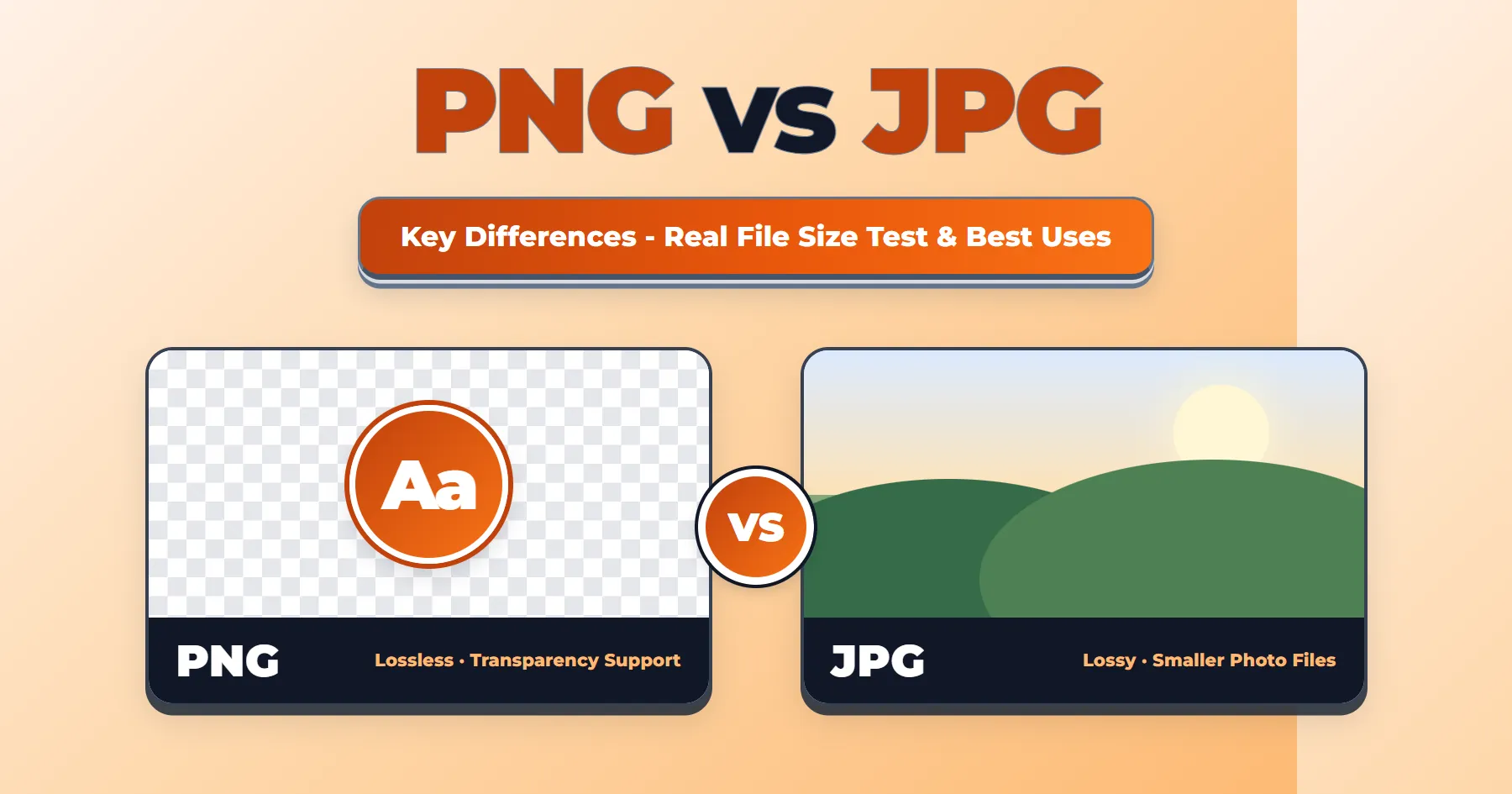

The difference between PNG and JPG comes down to compression, file size, transparency, and image quality. This comparison includes real file size tests to help you choose the right format.
PNG vs JPG: Quick Answer
Use PNG for logos, screenshots, graphics with text, and images that need a transparent background. Use JPG for photographs.
PNG and JPG at a Glance
| Feature | PNG | JPG |
|---|---|---|
| Compression | Lossless | Lossy |
| Typical file size for photos | Often larger | Smaller |
| Transparency | Yes | No |
What Are PNG and JPG Image Formats?
Both PNG and JPG are raster image formats, which means each image is made up of a grid of colored pixels.
What Is a PNG File?
PNG stands for Portable Network Graphics. It is a raster image format designed for lossless image storage and was developed as a patent-free replacement for GIF.
What Is a JPG (JPEG) File?
JPEG stands for Joint Photographic Experts Group. JPG is a common file extension for JPEG images, which became widely used for photographs after the standard was approved in 1992.
Difference Between PNG and JPG: 4 Key Differences
Compression
PNG uses lossless compression, which preserves the image data exactly during saving.
JPG uses lossy compression, so some image data is permanently removed when the image is saved, which reduces file size.
A quality setting controls how much is removed: higher quality gives a larger file, and at higher settings the change is often not noticeable.
Does Re-saving a PNG or JPG Reduce Its Quality?
Saving a PNG repeatedly does not reduce its image quality through compression. However, editing and exporting a JPG again with lossy compression can remove more image data.
File Size
The biggest practical difference between PNG and JPG is file size. A PNG version of a photograph can be much larger than its JPG version.
Why Are PNG Files Sometimes So Large?
PNG keeps all the image data, so its file size depends heavily on the image. More pixels mean more data to store.
Photographs, with millions of colors and fine detail, leave PNG compression little room to reduce the size. Simple graphics with only a few colors are the exception, and PNG can even be smaller than JPG for them.
Transparency
PNG supports transparency through an alpha channel, which allows transparent and semi-transparent areas. JPG does not support transparency.
When you save a transparent PNG as a JPG, the see-through areas need to be filled with a solid color. White is a common choice, but some tools use black by default or let you select another background color before exporting.
Image Quality and Sharp Edges
When saved from a clean source, PNG's lossless compression preserves sharp edges and fine details without adding JPEG-style compression artifacts.
JPG compression can blur text and sharp lines or leave faint blocky marks around them, especially at lower quality settings.
PNG vs JPG: Real File Size Test
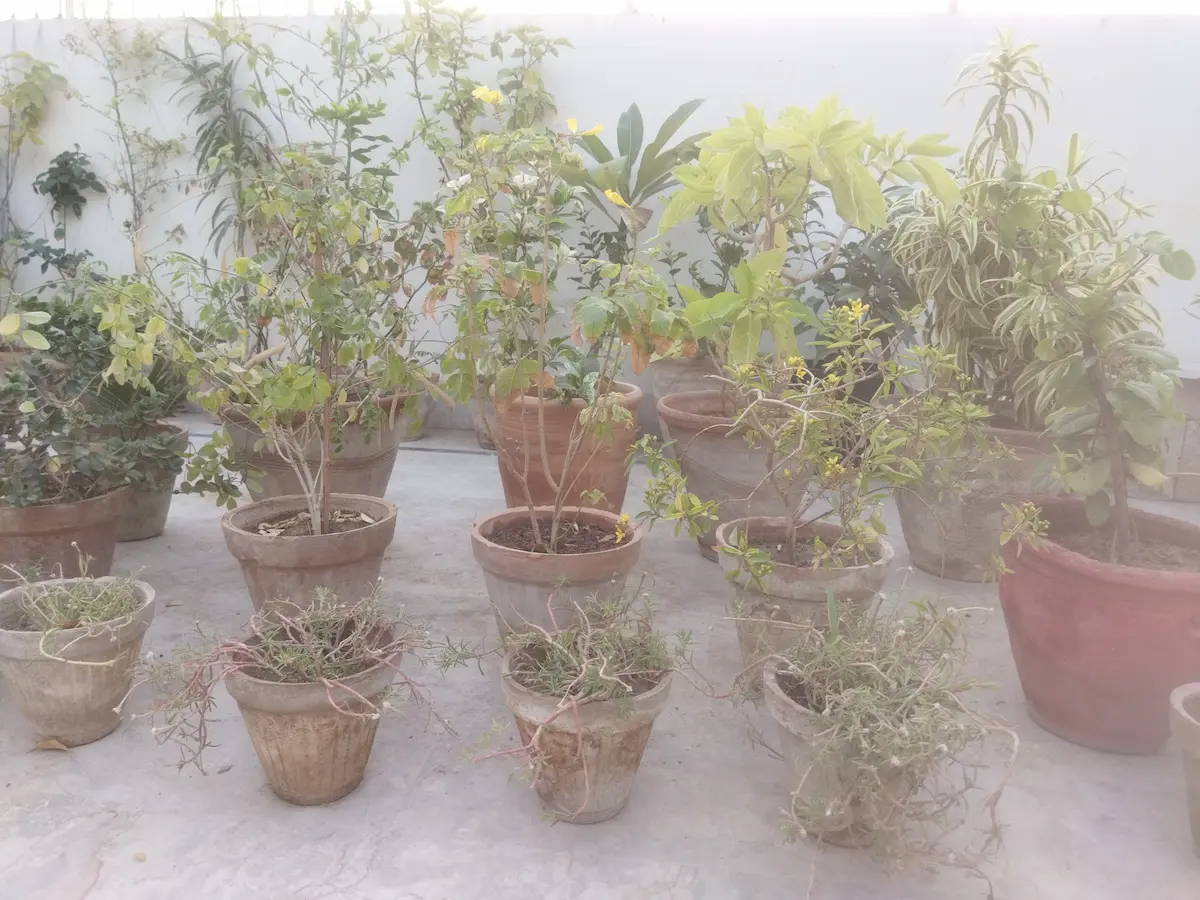
To see the difference between PNG and JPG in practice, I tested two images:
- A screenshot containing text, originally saved as PNG.
- A phone photograph, originally saved as JPG.
I converted each image to the other format: the photograph from JPG to PNG, and the screenshot from PNG to JPG.
I also saved the photograph as JPG at quality 100, 80, and 60 to see how the quality setting changes the file size.
All copies were exported from the original files, and I kept the dimensions unchanged so the comparison is fair.
PNG has no quality setting, so the JPG quality levels are compared against a single PNG export.
The images below are resized WebP copies for faster loading. All file sizes in the tables come from the original files.
Test 1: Photo
| Format | File Size |
|---|---|
| Original JPG | 3.55 MB |
| PNG (converted) | 10.3 MB |
| JPG, Quality 100 | 4.79 MB |
| JPG, Quality 80 | 1 MB |
| JPG, Quality 60 | 562 KB |
Test 2: Screenshot with Text
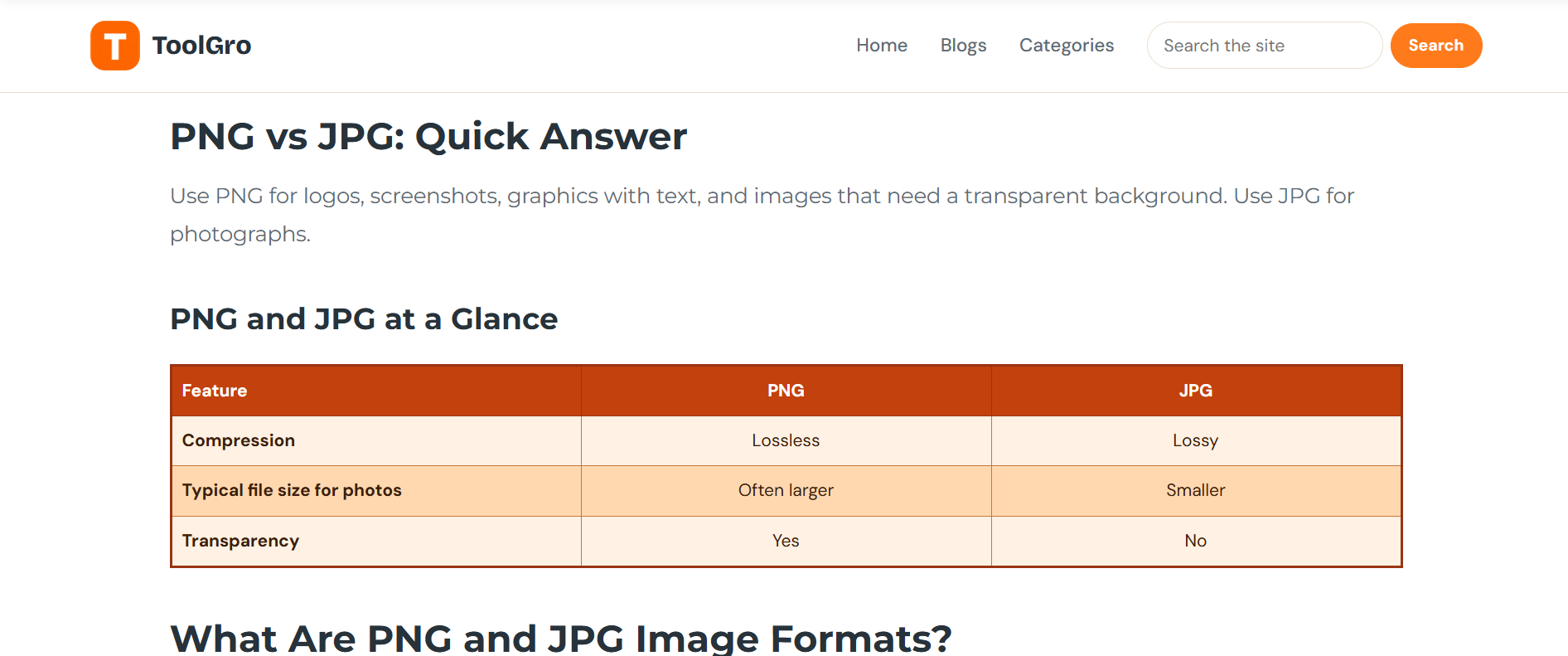
The table below shows the file sizes for this screenshot.
| Format | File Size |
|---|---|
| Original PNG | 80.5 KB |
| JPG, Quality 80 | 87.8 KB |
In my test, the PNG version of the 4000 × 3000 photograph was 10.3 MB, about 2.9 times the size of the 3.55 MB original JPG.
Saving the photograph as JPG at quality 80 brought it down to 1 MB, roughly 72% smaller than the original. Quality 60 reduced it further to 562 KB.
The screenshot told the opposite story. The original PNG was only 80.5 KB, while the JPG at quality 80 came out slightly larger at 87.8 KB.
For flat graphics with sharp text and few colors, PNG can sometimes produce a smaller file than JPG while keeping the edges clean.
Is JPG Quality 100 Lossless?
No. Even at quality 100, JPG still removes some image data. It simply keeps more detail than lower settings, at the cost of a larger file.
In my test, quality 100 produced a 4.79 MB file, larger than the 3.55 MB original. A higher setting does not recreate the original.
PNG-8 vs PNG-24 and Baseline vs Progressive JPG
Both formats come in more than one internal type. The type you pick changes file size and how the image behaves on screen.
PNG-8 vs PNG-24
The number refers to how many bits store each pixel's color. PNG-8 uses a palette of up to 256 colors, while PNG-24 stores millions of colors per image.
| Feature | PNG-8 | PNG-24 |
|---|---|---|
| Colors | Up to 256 | Millions |
| File size | Smaller | Larger |
| Best for | Icons and flat graphics | Gradients and detailed graphics |
Use PNG-8 for simple artwork with few colors, such as flat icons or basic diagrams. Its limited palette can cause visible banding in gradients.
Soft edges and shadows may also look less smooth because transparency is tied to the limited color palette.
Use PNG-24 for graphics with smooth gradients and detailed artwork.
Baseline vs Progressive JPG
These two JPG types differ in how the image appears while it loads.
A baseline JPG draws from top to bottom, one strip at a time. A progressive JPG first shows a blurry version of the whole image, then sharpens it in several passes. The final picture looks the same either way.
For website images, progressive JPG is often the more suitable option. Visitors on slow connections see something right away instead of an empty gap. Progressive files are also often slightly smaller.
The trade-off is that very old software may handle progressive JPGs poorly, and they need a little more processing to decode.
Baseline is still fine for images you only plan to print, email, or store. In most editors, progressive is a checkbox in the JPG export options.
When to Use PNG vs JPG
Two situations the quick answer does not cover:
| Situation | Best Format | Why |
|---|---|---|
| Repeated editing | PNG or lossless TIFF | Preserves image data between saves |
| Sharing photographs by email or storing many photos | JPG | Smaller files and less storage space |
PNG vs JPG for Websites
For websites, image file size can affect loading speed. Large images can take longer to load and may delay Largest Contentful Paint (LCP), one of Google's Core Web Vitals.
WebP and AVIF can reduce image file sizes compared with PNG and JPG. Both formats also allow transparent backgrounds. Images are only one part of a well-structured post. See my guide to blog post formatting for how to place images, headings, and tables.
PNG vs JPG for Printing
Both formats can print well. Resolution matters more: around 300 PPI at the final print size is a common guideline.
The ideal value depends on print size and viewing distance.
Common Myths About PNG and JPG
PNG Is Always Higher Quality Than JPG
PNG does not automatically look better. A high-quality JPG of a photograph can look almost identical to a PNG, at a much smaller file size.
JPG and JPEG Are Different Formats
No. Both names describe the same image format. You will see JPG or JPEG depending on the extension attached to the file.
The shorter .jpg spelling became common because older Windows systems limited file extensions to three characters.
Renaming a PNG File to JPG Converts It
A PNG file remains a PNG even if you replace its extension with .jpg. Only the name changes. The image data stays the same.
To convert it properly, follow the steps below.
Converting JPG to PNG Restores Lost Quality
No. Once JPG compression removes image details, they are gone for good. Saving the file as PNG only stores the already-reduced image, usually at a larger file size.
How to Check a File's Real Format
The file extension usually tells you the format: PNG files end in .png, while JPG files end in .jpg or .jpeg.
Because an extension can be changed by simply renaming the file, it does not guarantee the real format.
To check the actual format, use the file command in a Mac or Linux terminal, for example file photo.jpg. It reads the file's contents, not its extension.
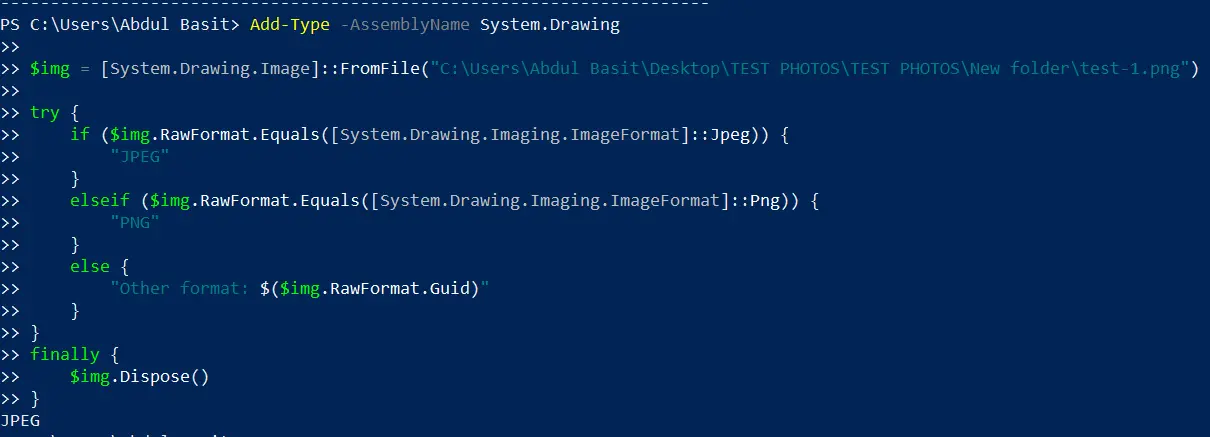
On Windows, PowerShell can read the real format through .NET's RawFormat property. Follow these steps:
- Press the Windows key, type PowerShell, and press Enter.
- Paste the code below.
- Replace
Your_complete_file_Path_Herewith the full path of your image, for exampleC:\Users\Name\Pictures\photo.png. - Press Enter to run it.
Add-Type -AssemblyName System.Drawing

$img = [System.Drawing.Image]::FromFile("Your_complete_file_Path_Here")

try {
    if ($img.RawFormat.Equals([System.Drawing.Imaging.ImageFormat]::Jpeg)) {
        "JPEG"
    }
    elseif ($img.RawFormat.Equals([System.Drawing.Imaging.ImageFormat]::Png)) {
        "PNG"
    }
    else {
        "Other format: $($img.RawFormat.Guid)"
    }
}
finally {
    $img.Dispose()
}
The script prints JPEG or PNG. For any other format, it prints "Other format" followed by an ID instead.
I tested this on a JPG that I had renamed to .png. The extension said PNG, but PowerShell still reported JPEG.
How to Convert PNG to JPG With Minimal Quality Loss
Converting a PNG to JPG is lossy, but the right settings keep the visible changes small.
Follow these steps:
- Open your PNG image in an image editor or converter, such as Photoshop, Paint, or an online converter.
- Before saving a transparent PNG as JPG, decide which color should fill its transparent areas.
- To keep as much detail as possible, export the image as a JPG at quality 90 or above.
- Compare the original PNG and converted JPG at 100% zoom to check for visible quality differences.
Which JPG Quality Level Works Best for Websites?
A JPG quality setting of around 70 to 85 is a useful starting point for many web photographs. If the image needs to retain more detail, try a higher setting.
The best setting varies with the image, so preview the saved file at its display size before adding it to your website.
Conclusion
Even after understanding the difference between PNG and JPG, you may still feel unsure which one to choose for a particular image. In that case, check both versions for file size and appearance before deciding which one to use.
Whichever format you choose, keep an untouched original so you can export a fresh copy whenever you need a different format or quality setting.