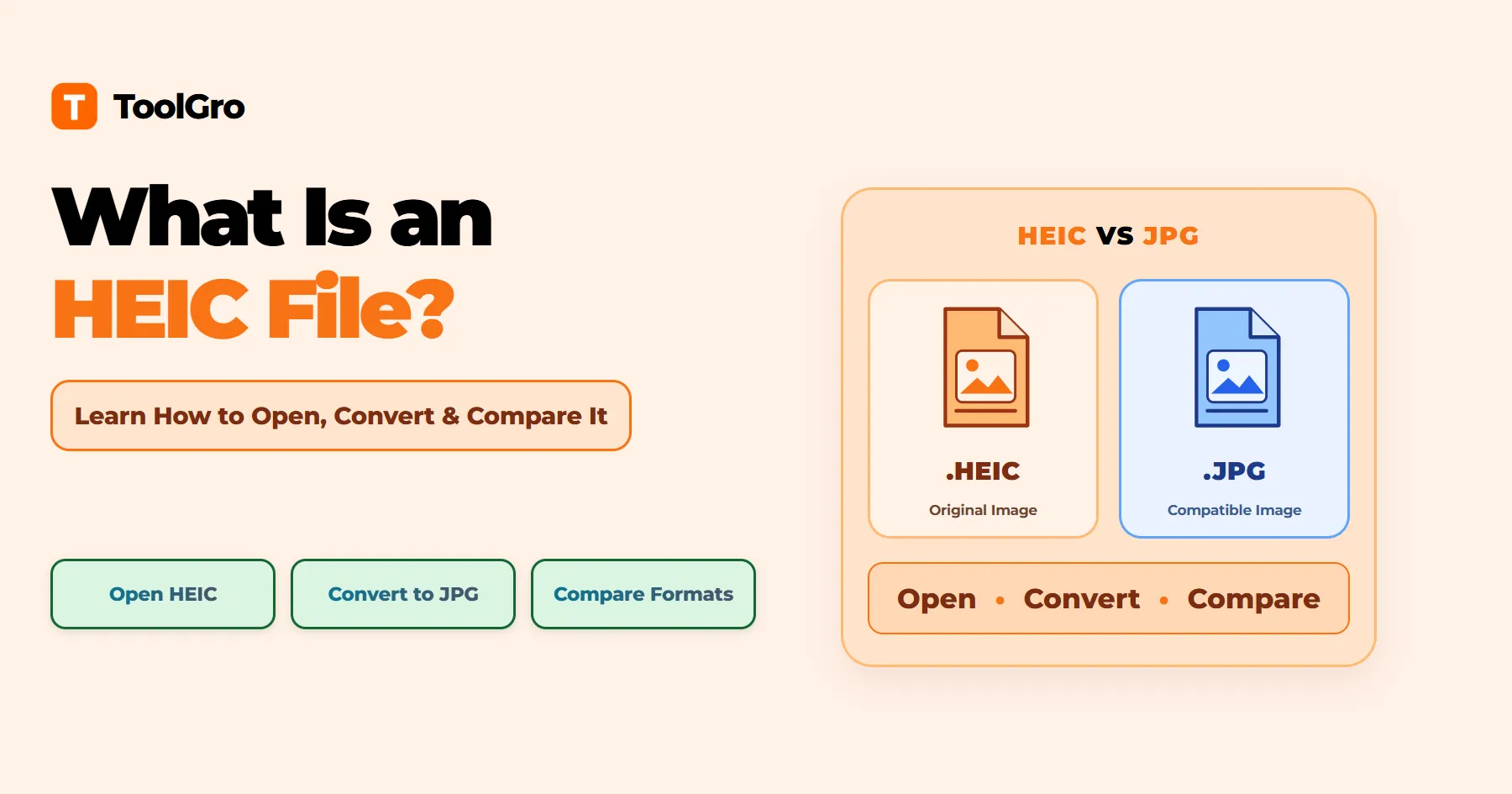

You send a photo from your phone. Your friend opens it on a Windows PC and sees an error. The file ends in .heic, and the photo will not open.
That small moment confuses a lot of people. In this post, you'll learn what an HEIC file is and how to open and convert it. You'll also see how it compares with other image formats.
Table of Contents
- What Is an HEIC File?
- How to Open an HEIC File (The Fastest Way)
- How to Convert HEIC to JPG or PNG
- How HEIC Compares With JPG, PNG, WebP, and AVIF
- Why Does Your iPhone Save Photos as HEIC?
- Which Devices and Apps Support HEIC?
- Common Problems and Fixes
- Should You Keep Shooting in HEIC?
- Is HEIC Here to Stay?
- HEIC vs HEIF: What's the Difference?
- HEIC File FAQs
- Final Thoughts on HEIC Files
What Is an HEIC File?
An HEIC file is a photo format that saves high-quality pictures in a small file size. iPhones use it by default, starting with iOS 11.
It uses HEVC (High Efficiency Video Coding), a video compression method, to keep files small.
Key Facts About HEIC Files
| Detail | What it means |
|---|---|
| File extension | .heic (.heics for image sequences) |
| MIME type (Multipurpose Internet Mail Extensions) | image/heic (image/heic-sequence for HEIC image sequences) |
| Devices that create it | iPhone 7 and later, plus some Android phones |
How to Open an HEIC File: The Fastest Way on Each Device
Open HEIC Files in Windows 10 and Windows 11
When Windows cannot open an HEIC file, the Photos app may show this message: “Both HEIF and HEVC image Extensions are required to display this file.”

These two extensions are small add-ons from the Microsoft Store. HEIF stands for High Efficiency Image File Format.
- Double-click the HEIC file. If Photos shows the error message above, click the link inside it to open the Microsoft Store. The page may be titled HEIF and HEVC Media Extensions. Follow the Store instructions to install the required extensions. The HEVC component may already be installed on your PC or may show a price.
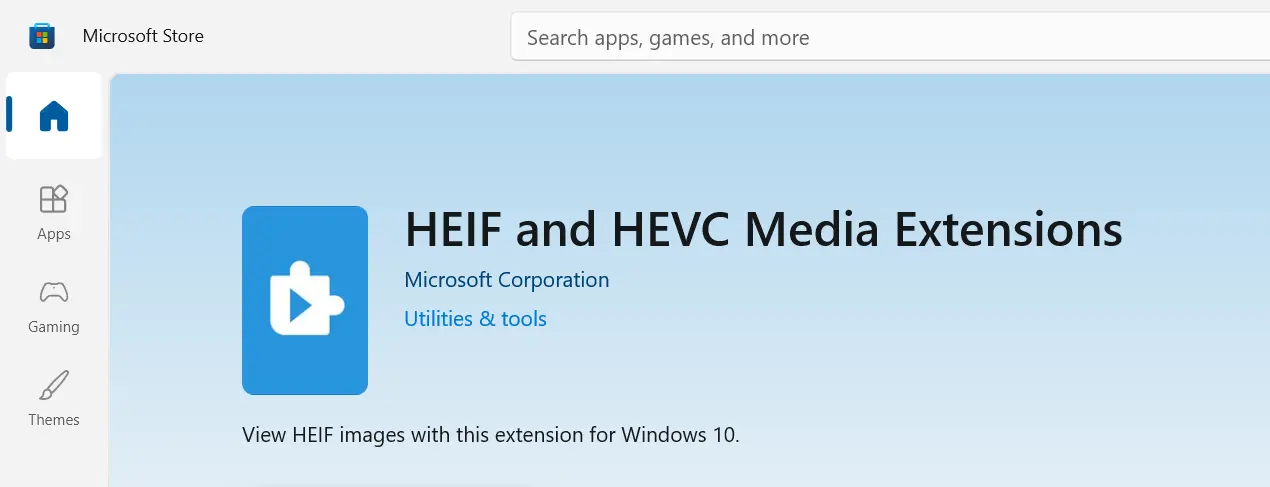
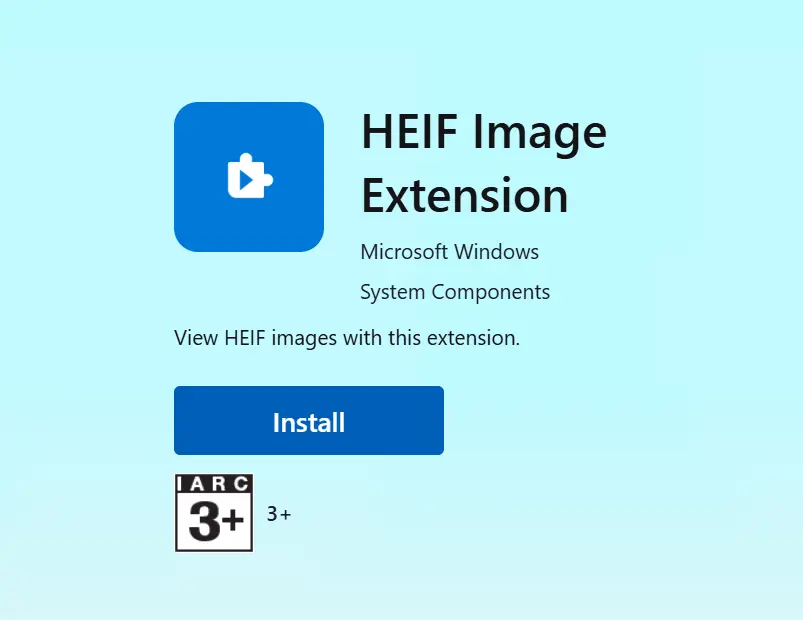
- If you prefer to install the extensions separately, you can also get HEIF Image Extension from its individual Microsoft Store listing. Make sure HEVC Video Extensions is installed as well. In my test, the HEIF extension alone was not enough to open an HEIC file in Photos on my Windows PC, so your result may differ.
- Open the HEIC file again in Photos. If it still does not open, close and reopen Photos or restart your PC, then try again.
- If Microsoft's extensions still do not work, try a dedicated HEIC image viewer instead. See the Use an HEIC File Viewer section for an alternative.
Open HEIC Files on Mac and iPhone
Apple devices include built-in support for HEIC files. On a Mac, double-click the file to open it in your default image app, or open it directly in Preview.
On an iPhone or iPad, open the photo in the Photos app.
Your iPhone may also convert HEIC photos to a more compatible format, such as JPEG (Joint Photographic Experts Group, also called JPG), depending on how you share or transfer them:
- Sharing: the Format options (Automatic, Current, or Most Compatible) determine whether your iPhone keeps the original file format or converts the photo or video to a more compatible format.
- Cable transfer: open Settings > Apps > Photos (on older iOS versions, Settings > Photos) and find Transfer to Mac or PC. Choose Keep Originals to transfer the original HEIC files, or Automatic to transfer photos in a compatible format, which may convert them to JPEG.
Apple explains these settings on its Using HEIF or HEVC media on Apple devices support page.
Open HEIC Files on Android
Most phones running Android 10 or later support HEIC image decoding. But whether a photo opens in the default Gallery app depends on the device and app.
On older phones, support depends on the device and the app.
Saving HEIC photos needs hardware support, so not every phone can create them. You can read the details in the Android Open Source Project documentation.
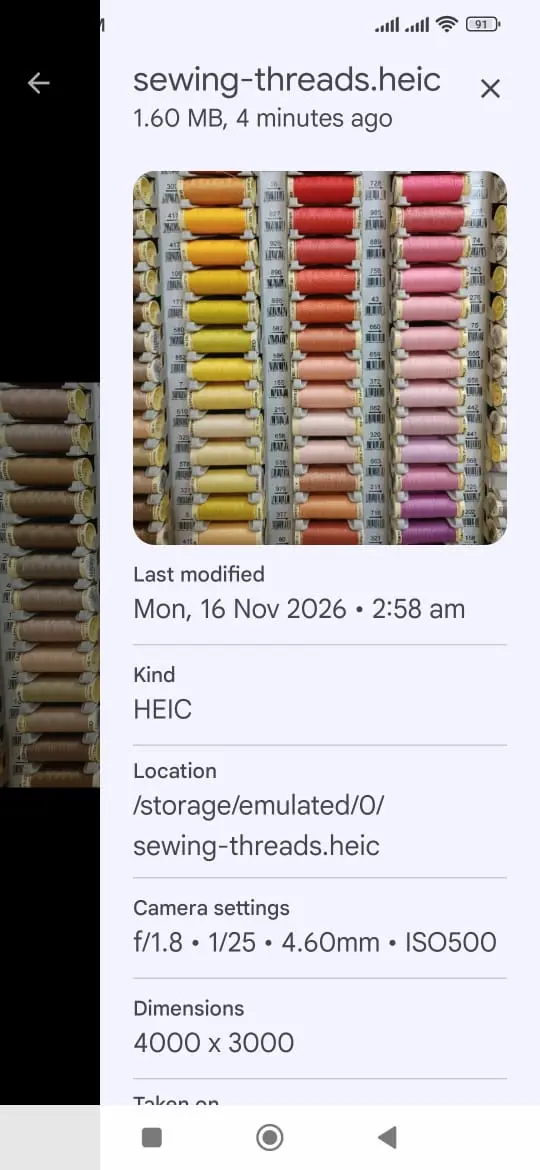
In my test on a phone running Android 12, an HEIC file opened successfully in the default gallery app.
Use an HEIC File Viewer
If the default app on your computer cannot open HEIC, a separate viewer can help. These are two simple options:
- Built-in apps: Photos on Windows and Preview on Mac are already installed, but Windows may need the extensions described above.
- XnView MP (Windows, Mac, Linux): A desktop image viewer that can open HEIC files locally without uploading them. It is free for private and educational use, but business use requires a license. HEIC support is built in, so a separate codec is usually not needed.
Support on Chromebooks and Linux computers depends on the system and the viewer you use. Install codec packages only from official sources.
How to Convert HEIC to JPG or PNG (and What You Lose)
If you need a more widely supported image, you can use an online converter such as CloudConvert to turn your HEIC photo into a JPG, or into a PNG (Portable Network Graphics).
Convert HEIC to JPG With CloudConvert
- Open the CloudConvert HEIC to JPG converter.
- Click Select File and choose your HEIC photo.
- Once the file is uploaded, click Convert.
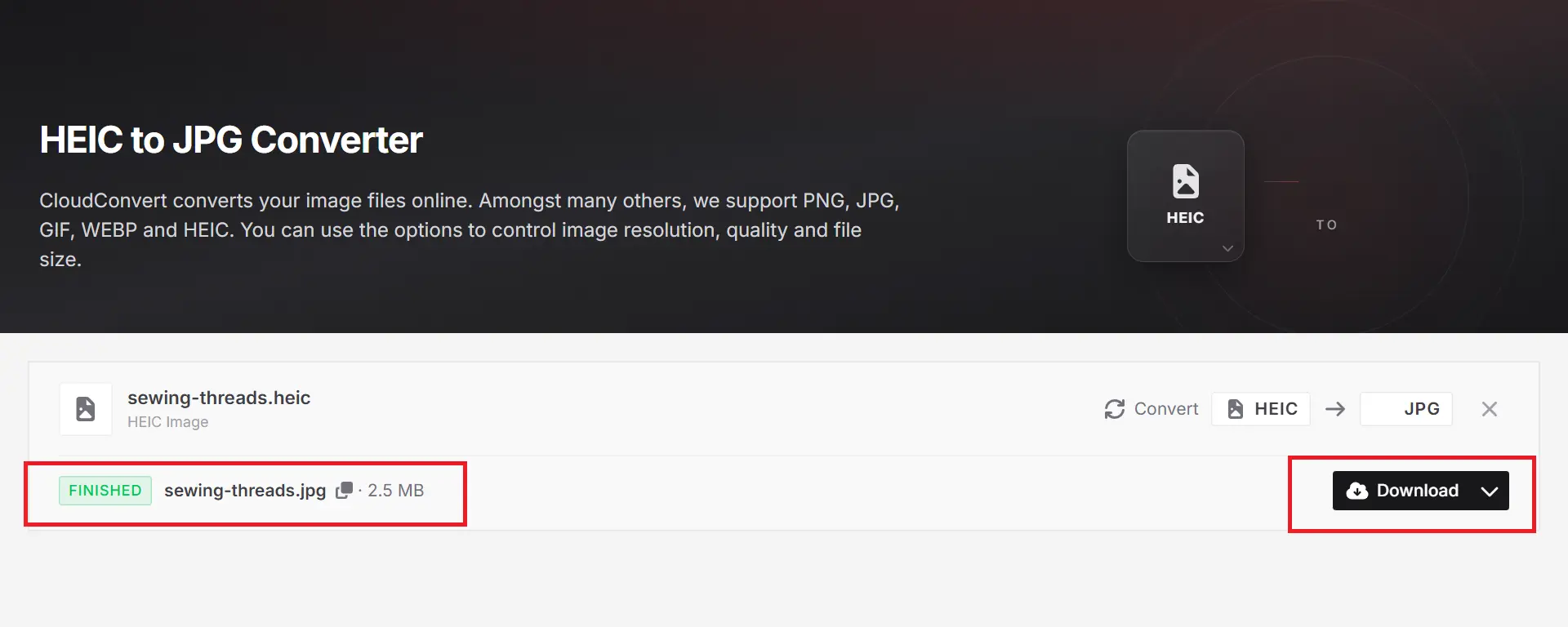
- Wait for the conversion to finish, then click Download to save your JPG image.
To create a PNG instead, use the CloudConvert HEIC to PNG converter and follow the same steps.
Choose JPG for general sharing and uploads. In my test, the original HEIC photo was 1.52 MB. The converted JPG was about 2.5 MB, and the PNG was about 9.7 MB. That makes the JPG about 1.6 times larger and the PNG more than six times larger than the HEIC original. This is one photo, so your results will vary.

CloudConvert temporarily uploads files to its servers. According to its privacy policy, uploaded files are deleted automatically within 24 hours at the latest. Avoid uploading private or sensitive photos to online converters.
Converting to JPG uses lossy compression, so some image information may be discarded.
A high-quality setting can make the difference hard to notice, but it does not guarantee that every detail stays unchanged. You may also lose some extras:
- Live Photo motion: converting the still image to JPG does not preserve the associated video component. Keep both original resources if you want to retain the Live Photo.
- Depth data: Portrait mode depth information and editing controls may not carry over.
- EXIF (Exchangeable Image File Format) details: date, camera, and location information may be kept, but some conversion tools remove metadata.
Keep the original HEIC file before converting an important photo. Save the JPG or PNG as a separate copy so you can return to the source later.
How HEIC Compares With JPG, PNG, WebP, and AVIF
WebP is an image format developed by Google for websites. AVIF stands for AV1 Image File Format and uses the AV1 (AOMedia Video 1) codec.
Format-by-Format Breakdown
HEIC
- Size and quality: small files with high quality.
- Transparency: supported by the format, but uncommon in iPhone photos.
- Compatibility: limited outside supported apps and devices.
- Best for: phone photo storage.
JPG
- Size and quality: medium files with good quality.
- Transparency: not supported.
- Compatibility: very broad.
- Best for: sharing and general use.
PNG
- Size and quality: lossless, but files are often large for photos.
- Transparency: supported.
- Compatibility: very broad.
- Best for: logos, screenshots, and graphics.
WebP
- Size and quality: small files with good to high quality.
- Transparency: supported.
- Compatibility: all modern browsers.
- Best for: website images.
AVIF
- Size and quality: often very small files with high quality.
- Transparency: supported.
- Compatibility: modern browsers and newer apps.
- Best for: efficient website images.
For a closer look at two of these formats, read my post on difference between PNG and JPG.
RAW (unprocessed camera data) and Apple ProRAW are different from these everyday image formats. They preserve more image data for editing.
Their file sizes vary widely by camera and settings, so there is no reliable size multiplier that applies to every photo.
Why Does Your iPhone Save Photos as HEIC?
Better cameras create heavier photos, and your storage pays the price. HEIC shrinks the file while keeping the picture looking good.
Smaller Files at Similar Visual Quality
HEIC usually creates smaller files than JPG at similar visual quality. The difference depends on the photo, the camera, and the compression settings.
You can see a real example in my CloudConvert test above.
How HEVC Compression Helps Reduce File Size
HEVC reduces file size by identifying patterns and similarities within an image instead of treating every small area as completely separate information.
It divides the picture into blocks, predicts details from nearby areas, and stores the differences needed to reconstruct the image.
Its flexible block sizes help it handle both simple and complex image details efficiently.
What's Hidden Inside an HEIC File?
Depending on the device and settings, an HEIC file may contain additional image data alongside the main photo, such as:
- Depth data: powers the Portrait mode blur.
- Wide color and HDR (High Dynamic Range): richer colors and brightness.
- Alternate images and thumbnails: extra versions of the main image.
These features are optional. A regular still photo may contain only the main image and its associated metadata.
A Short History of HEIC
- 2017: Apple made HEIC the default photo format on supported iPhones with iOS 11. macOS High Sierra added support for opening HEIC files.
- 2018: Windows 10 added HEIC support in the Photos app through Microsoft's extensions.
- 2019: Android 9 and later include HEIF image decoding support, but whether a photo opens in the default Gallery app depends on the device and app.
Which Devices and Apps Support HEIC?
Support depends on the operating system, installed codecs, app, and sometimes the device hardware.
HEIC Compatibility Overview
Works: opens normally
Conditional: needs an extra step or condition
Not reliable: often fails
iPhone and Mac
- Support: Works
- Note: Built-in support
Windows 11
- Support: Conditional
- Note: May need the relevant image and video extensions
Windows 10
- Support: Conditional
- Note: Codec support may need to be installed
Android
- Support: Conditional
- Note: Android 10 or later opens most HEIC files in the default gallery app. Older versions vary by device and app.
Safari 17 and later
- Support: Works
- Note: Can display HEIC images in webpages
Chrome, Edge, Firefox
- Support: Not reliable
- Note: Do not rely on native HEIC image support
- Support: Conditional
- Note: Normal photo sharing may convert or compress the image, while sending it as a document can preserve the original file and format.
Gmail
- Support: Conditional
- Note: HEIC attachments may not show an image preview. Convert to JPG if the recipient needs to view the photo without downloading it.
Photoshop
- Support: Conditional
- Note: Support depends on the version and system codecs
Canva
- Support: Works
- Note: Accepts HEIC and HEIF images under 50 MB and up to 250 million total pixels, according to the Canva Help Center
WordPress
- Support: Conditional
- Note: WordPress 6.7 and later can automatically convert HEIC uploads to JPEG when the server's ImageMagick supports HEIC. Otherwise, convert the file before uploading it.
Opening a file in a computer app and displaying it directly on a webpage are two different things.
A Windows photo app may open HEIC after the required codecs are installed, even if the browser on that same computer cannot display the file in a webpage.
Browser support also changes, so check the current status before building a website feature around it.
HEIC File Not Opening? Common Problems and Fixes
Quick Fixes for Common HEIC Problems
No thumbnails in File Explorer
- Likely cause: Missing codec support or an outdated thumbnail cache
- Fix: Check the installed extensions and restart File Explorer
File opens as blank or broken
- Likely cause: The file may be corrupted or incompletely copied
- Fix: Copy it again from the original device or try another compatible viewer
Cloud backup shows a preview, but the downloaded file will not open
- Likely cause: The downloading device lacks a compatible HEIC decoder
- Fix: Open the file in a compatible app or download a JPG copy if the service offers one
File-format limits can also affect important submissions.
During the 2020 Advanced Placement (AP) exams, the submission system accepted JPG, JPEG, and PNG images, but not HEIC. Some students experienced submission failures when they tried to upload iPhone photos in HEIC format.
For school portals, job applications, and other uploads, follow the file types listed by the website.
Can an HEIC File Contain a Virus?
An image file is not a program, so it does not normally run on its own. However, vulnerabilities in software that processes images can sometimes be exploited.
Keep your system and apps updated, and avoid opening unexpected files from untrusted sources.
Should You Keep Shooting in HEIC? A Simple Decision Guide
Who Should Use HEIC and Who Should Switch to JPG?
A casual user in the Apple ecosystem
- Best choice: HEIC
- Reason: Convenient storage with built-in support
Short on storage
- Best choice: HEIC
- Reason: Smaller files can leave more room for photos
Working mostly on Windows or with older software
- Best choice: JPG
- Reason: Broader compatibility
A professional photographer
- Best choice: RAW or a supported high-quality source format
- Reason: Room for heavier editing
A web publisher or blogger
- Best choice: WebP or AVIF, with a suitable fallback
- Reason: Efficient delivery and modern browser support
How to Change the Format on Your iPhone
- Open Settings.
- Tap Camera.
- Tap Formats.
- Choose High Efficiency to shoot in HEIC.
- Choose Most Compatible to shoot in JPG.
This setting affects new photos. Existing photos remain in their original format.
Is HEIC Here to Stay?
On iPhones, most likely. Apple still recommends HEIF and HEVC for capturing photos, so you will keep meeting HEIC files in photo libraries.
Outside Apple's ecosystem, HEVC licensing requirements are one factor that can make HEIC harder for software and browsers to support.
AVIF, a newer format built on the AV1 codec, was designed to be royalty-free, which avoids that hurdle.
HEIC vs HEIF: What's the Difference?
The two names are closely related, so people often use them as if they meant the same thing. HEIF is the container standard that organizes the image data. HEIC is a HEIF image that uses HEVC compression.
HEIF
- What it is: The container standard
- Codecs: Can hold images compressed with other codecs, such as AV1 in AVIF files
- Extensions: .heif, plus .heifs for sequences. Some cameras, including Canon models, use .hif.
- Origin: Developed by the Moving Picture Experts Group (MPEG). Its requirements were defined in 2013, and the first version was technically finished in 2015.
HEIC
- Common use: Photos from iPhones and some Android phones
- Extensions: .heic, plus .heics for sequences
HEIC File FAQs
What does HEIC stand for?
HEIC is commonly expanded as High Efficiency Image Container, a term also used in Apple's developer documentation.
Other sources use High Efficiency Image Coding or High Efficiency Image Codec.
The abbreviation does not have one universally established expansion in the standard.
Can HEIC be lossless?
The format itself supports lossless image encoding. However, iPhone photos saved as HEIC are generally lossy, so they should not be assumed to be lossless originals.
Can I print HEIC photos?
Some print services accept HEIC, but others require JPG or PNG. A high-quality JPG is usually the safest choice, so check the print shop's accepted formats before sending your files.
Is HEIC free to use?
Taking and viewing HEIC photos on supported Apple devices generally costs nothing.
On other platforms, codec availability and licensing can affect software support, and some codec extensions may require payment.
Final Thoughts on HEIC Files
HEIC is efficient for storing photos, but JPG is easier to share with devices and apps that cannot open HEIC. The best format depends on where you plan to open, share, or upload your photos.
Now that you know what an HEIC file is and how to open it, accessing your photos should be easier. Try the different methods in I explained in my post and choose the easiest one for you.