
You work hard on your blog posts, publish them, and start preparing the next one. But publishing new content isn't enough if your posts don't connect with each other. That's where internal linking comes in.
This post explains what internal linking means. It also shows how to link your website pages with clear examples.
Table of Contents
- What Is Internal Linking?
- How to Add an Internal Link
- Why Internal Links Are Worth Adding
- Where to Find Link Opportunities
- Internal Linking Best Practices
- Internal Linking Mistakes and Fixes
- How to Audit Your Internal Links
- Internal Linking FAQs
- Final Thoughts
What Is Internal Linking?
In simple terms, internal linking means linking your own website pages to one another. It turns separate posts into a connected network.
Internal vs External Links
An internal link connects one page of your site to another. An external link connects to a page on a different site.
Before and After Example of an Internal Link
Here is a plain sentence from a blog post about blog titles:
Before: A good blog title gives readers a reason to open your post.
After: A good blog title gives readers a reason to open your post, so explore these 30 blog title examples for inspiration.
Here, "30 blog title examples" is the internal link. They lead to your post about blog title examples. The sentence still reads naturally and the link simply gives curious readers a next step.
How to Add an Internal Link
Follow these easy steps.
Step 1: Choose the Right Page to Link
Start with the reader's next question. Which page answers it? Read your sentence aloud. Would a reader click? If yes, the page fits. If you hesitate, look for a closer match.
Step 2: Write Clear Anchor Text
The words you click to open another page are called anchor text. They give readers an idea of what that page covers.
Use two to five words from your own sentence. Pick words that match the destination's topic.
Avoid linking a whole sentence. Long anchors look messy and say little.
A good test helps here. Read the anchor alone. If it doesn't sound weird to you, it will work.
Step 3: Insert the Link in Your Editor
In WordPress, follow these actions:
- Select your anchor text in the editor.
- Click the link icon in the editor toolbar.
- Type the destination post's title or paste its URL.
- If WordPress shows the matching post, select it. Otherwise, paste the post's URL and press Enter.
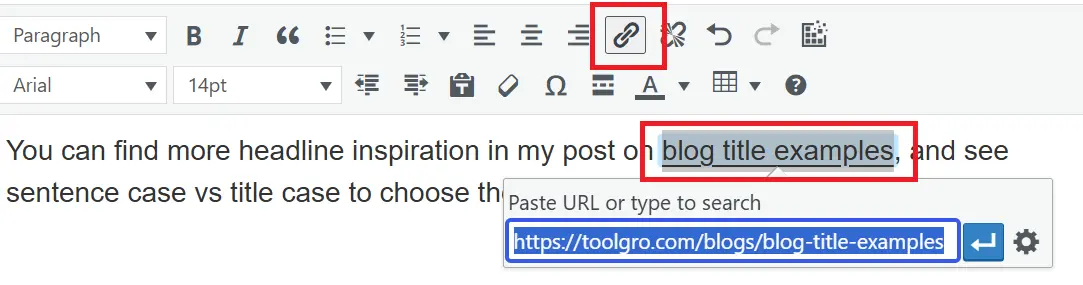
On a custom site, find and click the link icon after highlighting your anchor text.

Next, add the URL in the link box, as shown below.
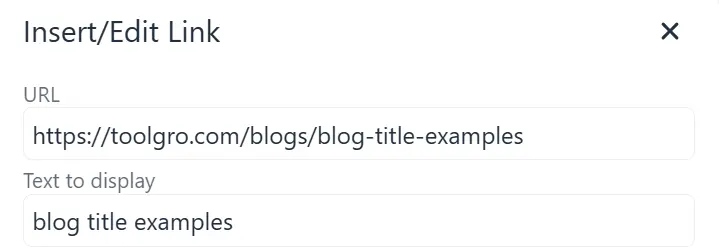
Or use HTML to add the link:
<a href="/blogs/blog-title-examples">blog title examples</a>
Understanding the HTML Link
<a> = The HTML anchor tag used to create a link.
href = The attribute that defines where the link takes users.
/blogs/blog-title-examples = The destination page's URL.
blog title examples = The anchor text, or the clickable words readers see.
Step 4: Click Every Link After Publishing
Open the live post, not the preview. Click each new link. Check that each link opens the correct page without an error.
Check the URL for typos. Test one link on your phone too. Fix any problem right away.
Why Internal Links Are Worth Adding
Internal links make it easy to find all the related content of a website. Your most useful content stays easy to see.
- Readers can discover useful related posts while reading.
- Crawlers follow these links to find your pages.
- Your post may appear as the referring page for the posts it links to.
Where to Find Link Opportunities
Finding good spots takes more effort than adding the link. Try these three methods.
Scan Old Posts for Your New Topic
After publishing a new post, review your older articles on related subjects. It's better to start with those posts that get traffic on a daily basis.
Review your existing posts. Find relevant sections where a link to your new post would make sense. Only add links that fit the context.
Find Posts With Few Links
A page that receives no internal link from any other page on your website is known as an orphan page. Readers may have difficulty finding it through your site's content.
New posts can become orphan pages if no existing page links to them.
List your five newest posts. For each one, ask which older posts could point to it. If you cannot name any, look for relevant opportunities in your existing content.
Search Your Site With Google
You can use Google to find any relevant section of a post. Use a specific keyword. Type this into Google:
site:yourdomain.com "your keyword"
Replace the domain with your own. Replace the keyword with your topic.

The results will include pages from your website that are related to your chosen search term.
Google treats words inside quotation marks as an exact-match phrase. The results may not include every matching page. Open each result and look for a natural sentence to link from.
Internal Linking Best Practices
These habits help you build a more useful site as your content grows.
Prefer Specific Posts Over Categories
Category pages are broad lists. A specific post answers a reader's question directly. Link to a category page only when you want readers to browse a topic.
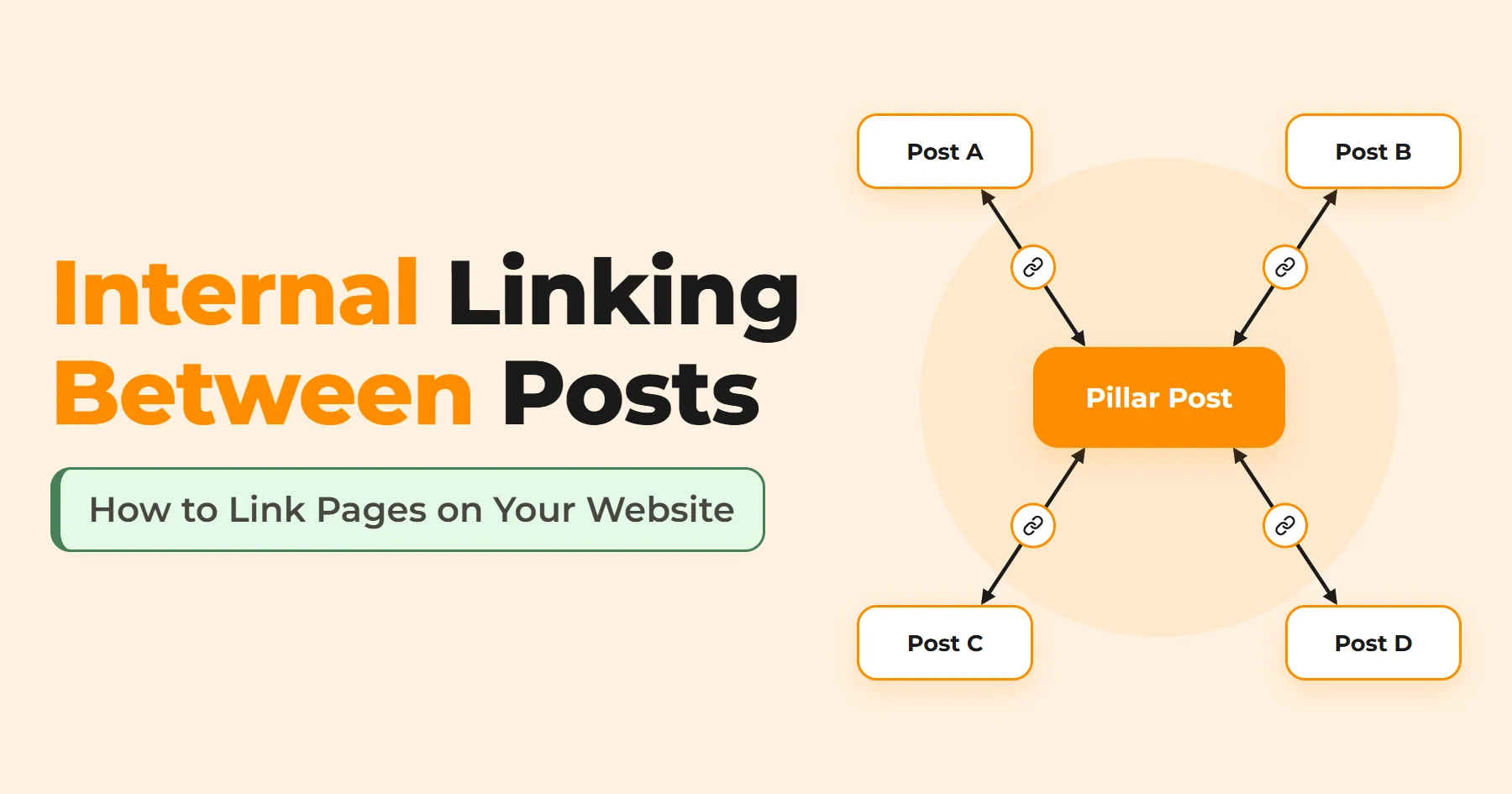
Build Internal Linking Clusters Around a Pillar Post
A pillar post covers a broad topic. Cluster posts cover its narrower parts. Connect the pillar and cluster posts with internal links in both directions. Add links between cluster posts when their subjects overlap.
Keep Important Pages Easy to Reach
Don't let your important pages get lost deep within your website. Keep them within three clicks of the homepage so visitors can find them easily.
Vary Your Anchor Text
The same page can receive links from multiple posts. Word each link to fit its own sentence. Repeating one exact phrase every time looks forced. Mix short and long phrases instead.
Internal Linking Mistakes and Fixes
Watch out for these common linking mistakes and learn how to correct them.
- Mistake: Using "click here" as anchor text.
Fix: Rewrite the anchor with the destination's topic words. - Mistake: Leaving broken links and redirect chains in place.
Fix: Replace the old URL with the final address. A redirect chain is a link that bounces through several URLs first. - Mistake: Packing many links into one paragraph.
Fix: Keep only the links readers truly need there. Move the rest to a related-reading list near the end.
How to Audit Your Internal Links
An audit finds technical problems and shows how links are spread across your site. Set aside about 30 minutes for this routine every few months.
Find Broken Links and Redirects
Crawling tools can help you identify these issues faster. Here are two options:
- Screaming Frog: It crawls your site like a search engine. Its response codes list broken links (404 errors) and redirects.
- Ahrefs Site Audit: It checks your site for broken links and redirect issues.
See Which Pages Get the Most Links
Open the Links report in Google Search Console and go to the Internal links section. The report lists your website's pages. It shows the number of internal links pointing to each one.
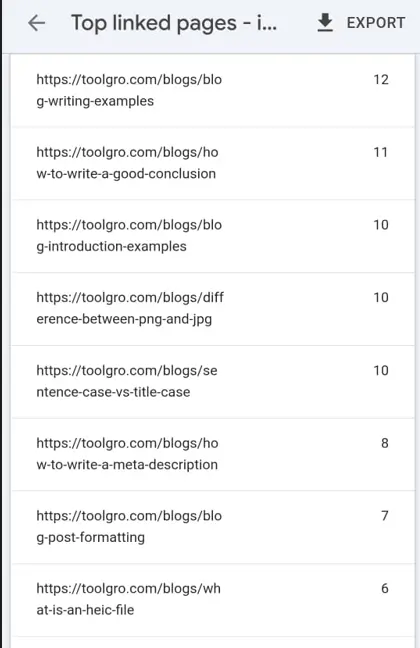
Compare that ranking with your priorities. Your most valuable pages should receive links from relevant posts.
Internal Linking FAQs
How many internal links are enough for one blog post?
There is no fixed number. Three to five links may be a reasonable starting point. But relevance matters more than hitting a target.
Can the same page be linked more than once?
Yes, if each link helps the reader. Link at the first natural mention. Repeat the link only in a far-off section. Several links to one page within a few paragraphs add little.
Do internal links help Google index pages?
Internal links can help Google discover a page. They do not guarantee indexing.
Final Thoughts
Internal links connect your website's pages. Do not take it lightly. Each link tells readers and search engines which pages matter.
Start with your most useful existing posts. Add links where they fit naturally. Good internal linking grows from a few relevant connections.